









Configure settings, languages, appearance, and protected data
Use the settings sections and distinguish interface and message languages.
Save settings and know the exceptions
Most valid changes save after a short pause. Save settings remains a manual fallback; resolve invalid drafts or retry failed saves before closing. Email signature content requires Save signature. Connection tests, scanner updates, licensing, restores, and destructive actions still require explicit confirmation.
Choose a language and appearance
Set the interface language in Settings → App Preference: English, Simplified Chinese, Malay, Tamil, French, German, Spanish, Russian, or Arabic. Under Appearance choose Office or Classic navigation, an independent Classic/Chat/List Inbox layout, and a theme color. Choose Light, Dark, or Follow Device; Follow Device follows the operating system and is selected in Settings. Content appearance separately controls message and editor colors: Follow app mode (default), Always light, or Manual switch.
Set incoming and desktop preferences
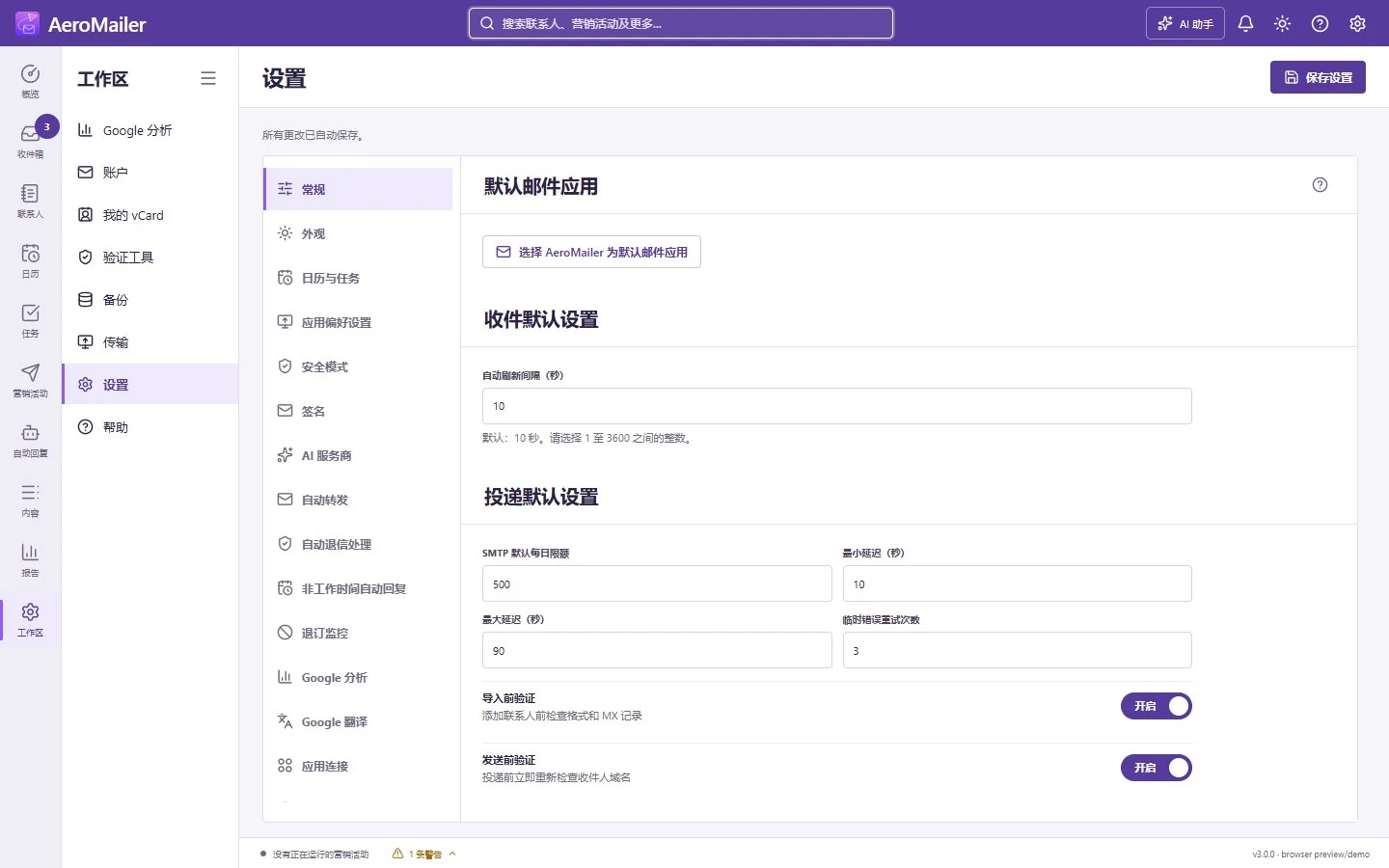
General → Incoming defaults controls background receiving (default 10 seconds; 1–3600 seconds). App Preference controls startup/tray behavior, spelling, recipient autocomplete, notification sounds and unread badges, outgoing-recipient saving and optional incoming contact capture. Incoming capture is off by default. AeroMailer remembers the window size and monitor when available.
Find work and protect your data
Top search finds contacts, campaigns, agents, reports, pages, and functions. The footer shows campaign status and the Activity monitor; open it to inspect active work or warnings. That status is not proof of provider delivery. Review Security, OpenPGP, Inbox translation, and MCP Access before enabling optional services.
Use Backup and Transfer instead of manually copying an app database. Settings → About shows the version, agreement, update checks, and license controls. Workspace → Help provides support links.

